Connect mailfloss to n8n
Use the mailfloss node in n8n to add email verification to your workflows. Check each new address as it arrives, verify a list as a batch job, or start a workflow when mailfloss finds an undeliverable address or finishes a job. The mailfloss node is a verified community node, so you can install it from the nodes panel in n8n Cloud and in self-hosted n8n.
Before you start
You need an n8n account and a mailfloss account with verification credits. Verifying one address uses one credit. A batch uses one credit per address.
Create a mailfloss API key
- In mailfloss, open Developers. The API keys tab opens.
- Click Create API key. Give the key a name you'll recognize, such as "n8n", and click Create API key.
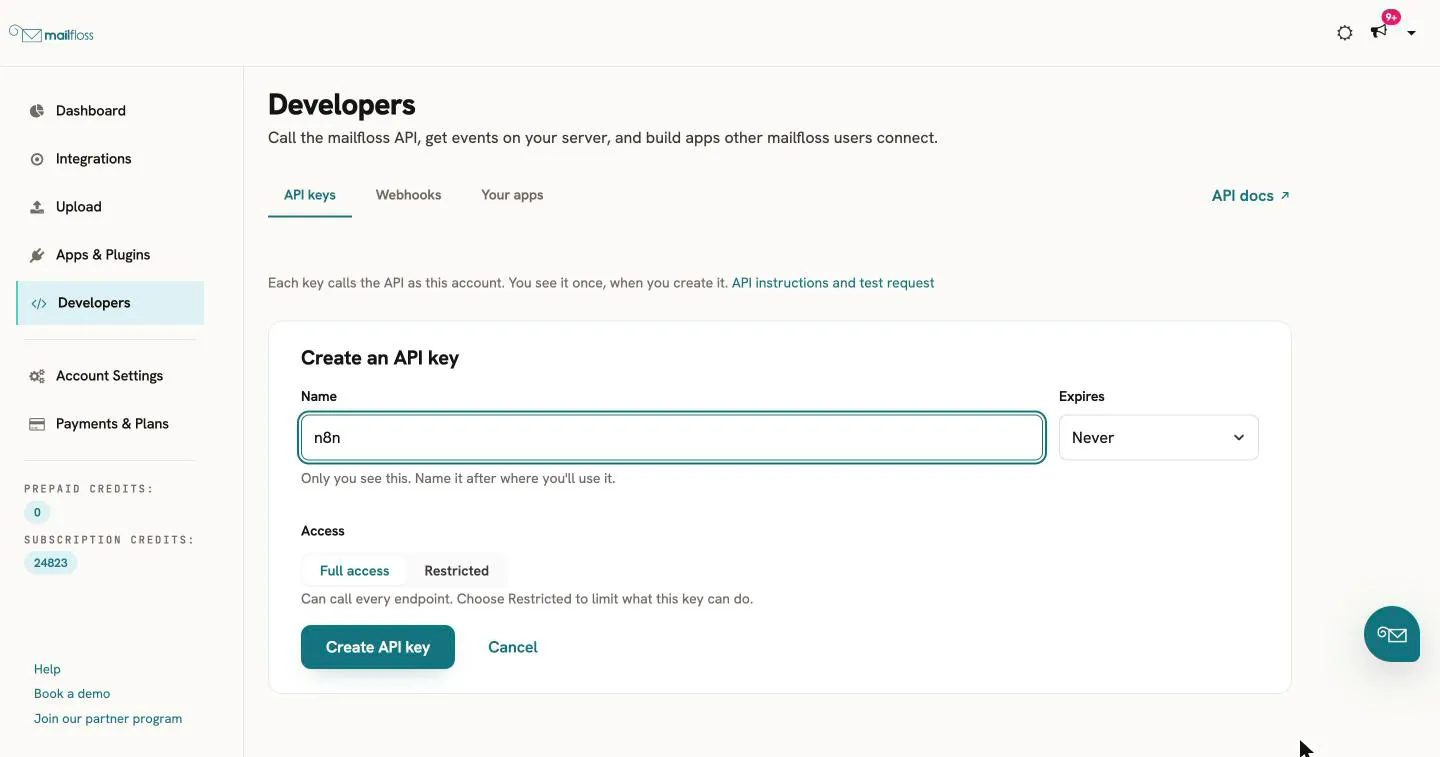
- Copy the key. mailfloss shows it only once.
A key with Full access works with every operation. If you choose Restricted, an operation that needs access you didn't grant fails with a 403 error.
Install the mailfloss node
- In a workflow, click + to open the nodes panel and search for mailfloss. The node shows a verified badge.
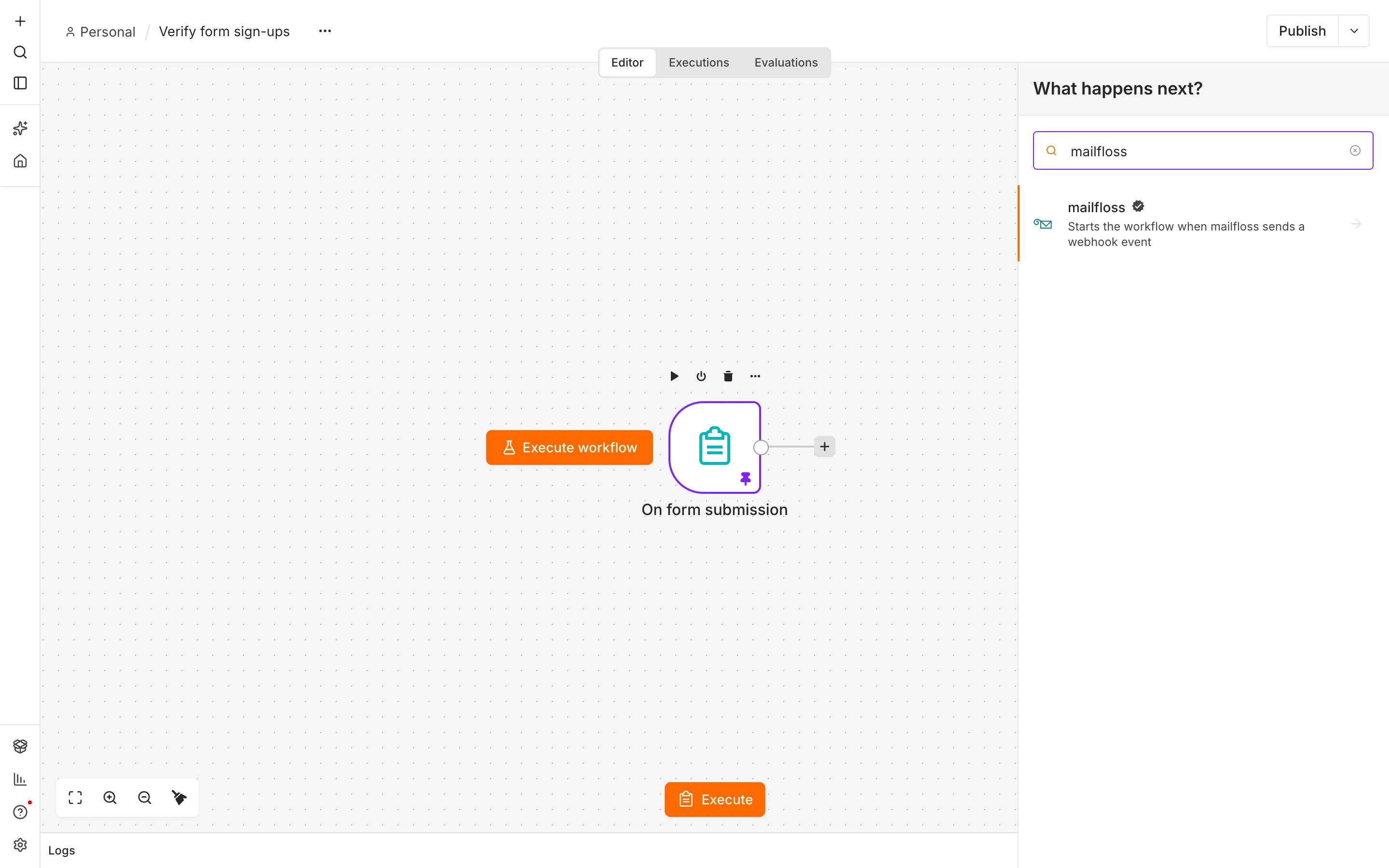
- Click mailfloss, then click Install node. An instance owner installs the node once; after that, everyone on the instance can use it. If you don't see Install node, ask your instance owner.
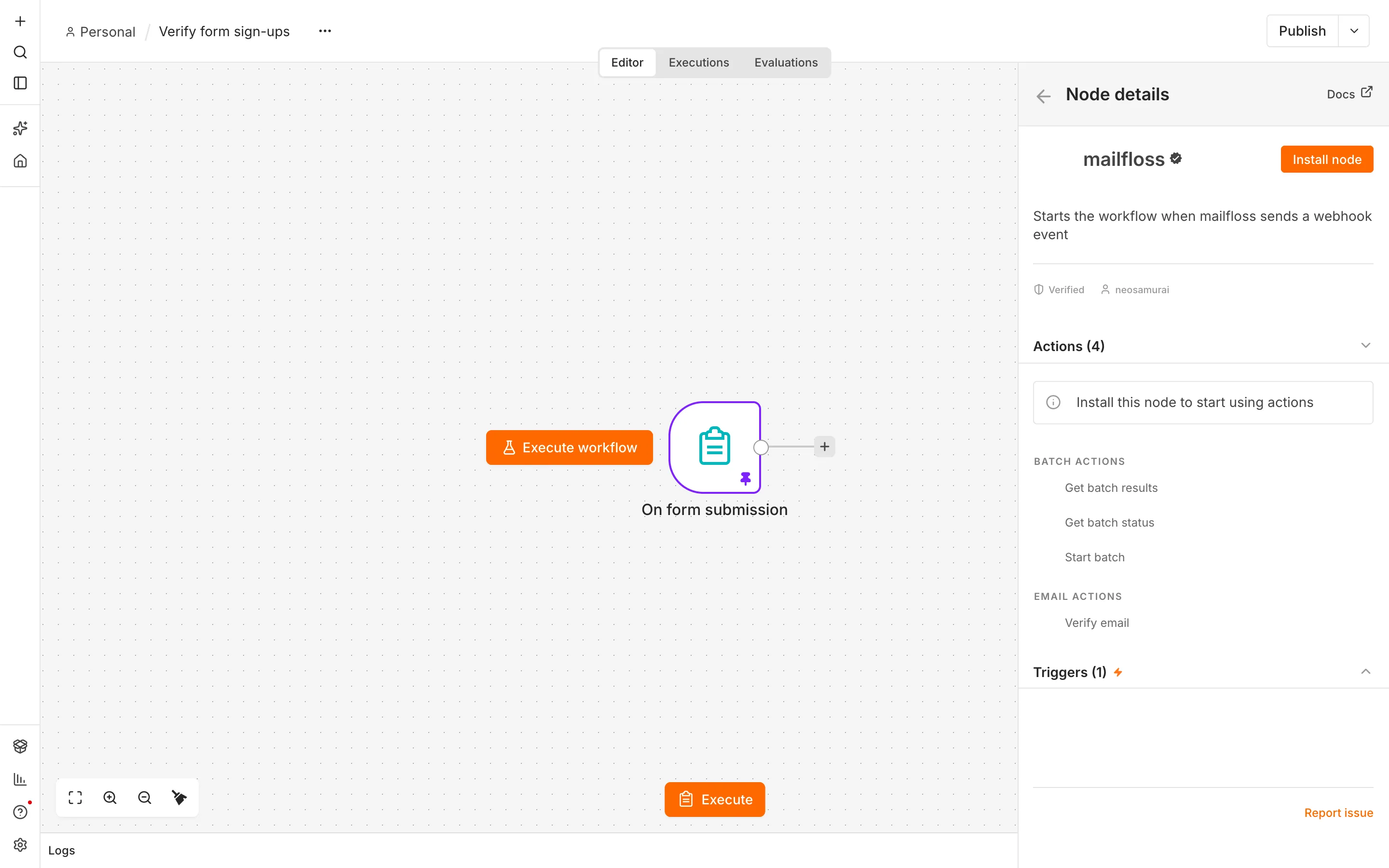
On self-hosted n8n, you can also install it under Settings > Community nodes, with the package name @mailfloss/n8n-nodes-mailfloss.
Connect your mailfloss account
- Add a mailfloss action, for example Verify email.
- Under Credential, click Connect to mailfloss.com.
- Paste your API key into API Key and click Save.
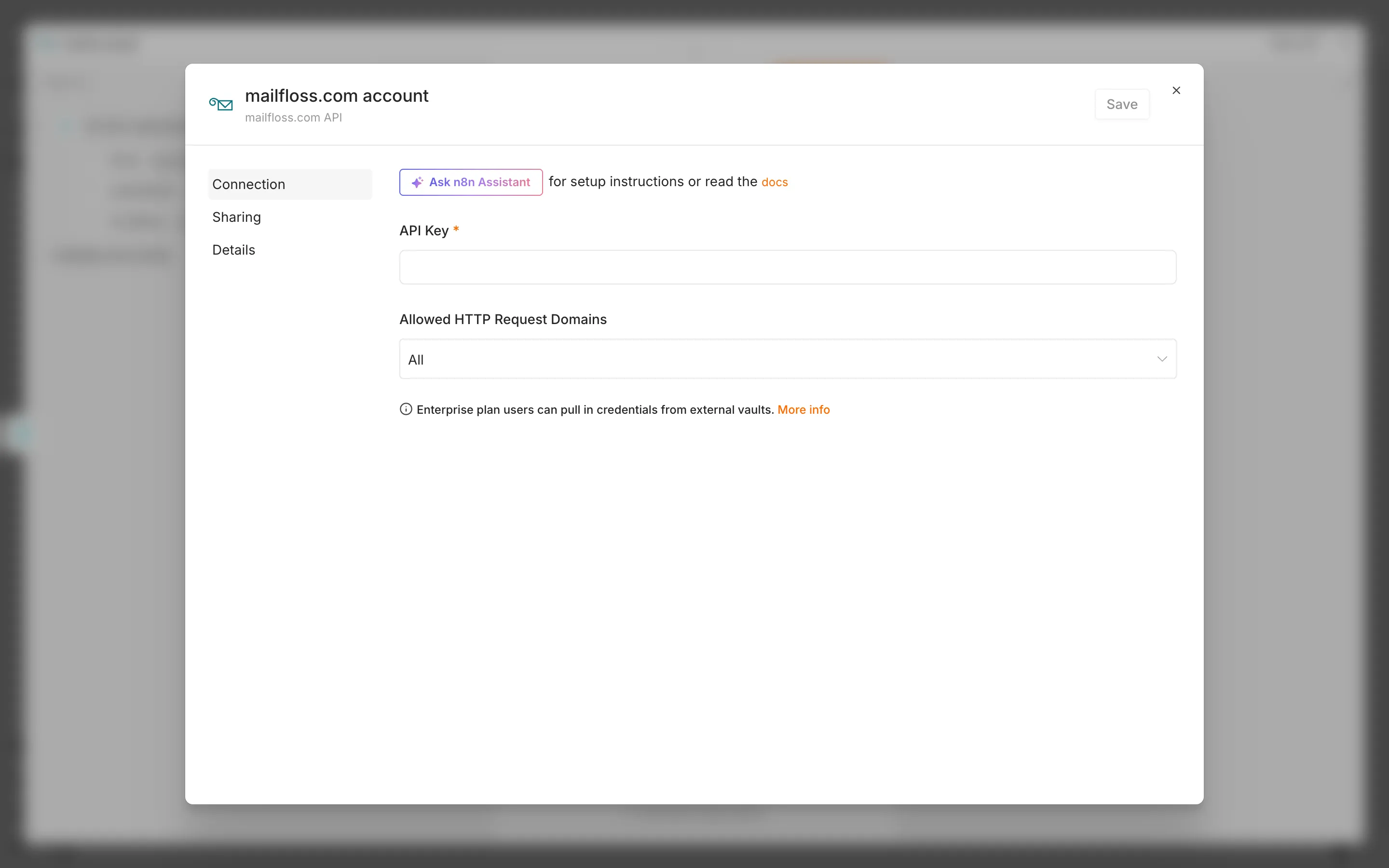
- n8n tests the key. When it works, you see Connection tested successfully.
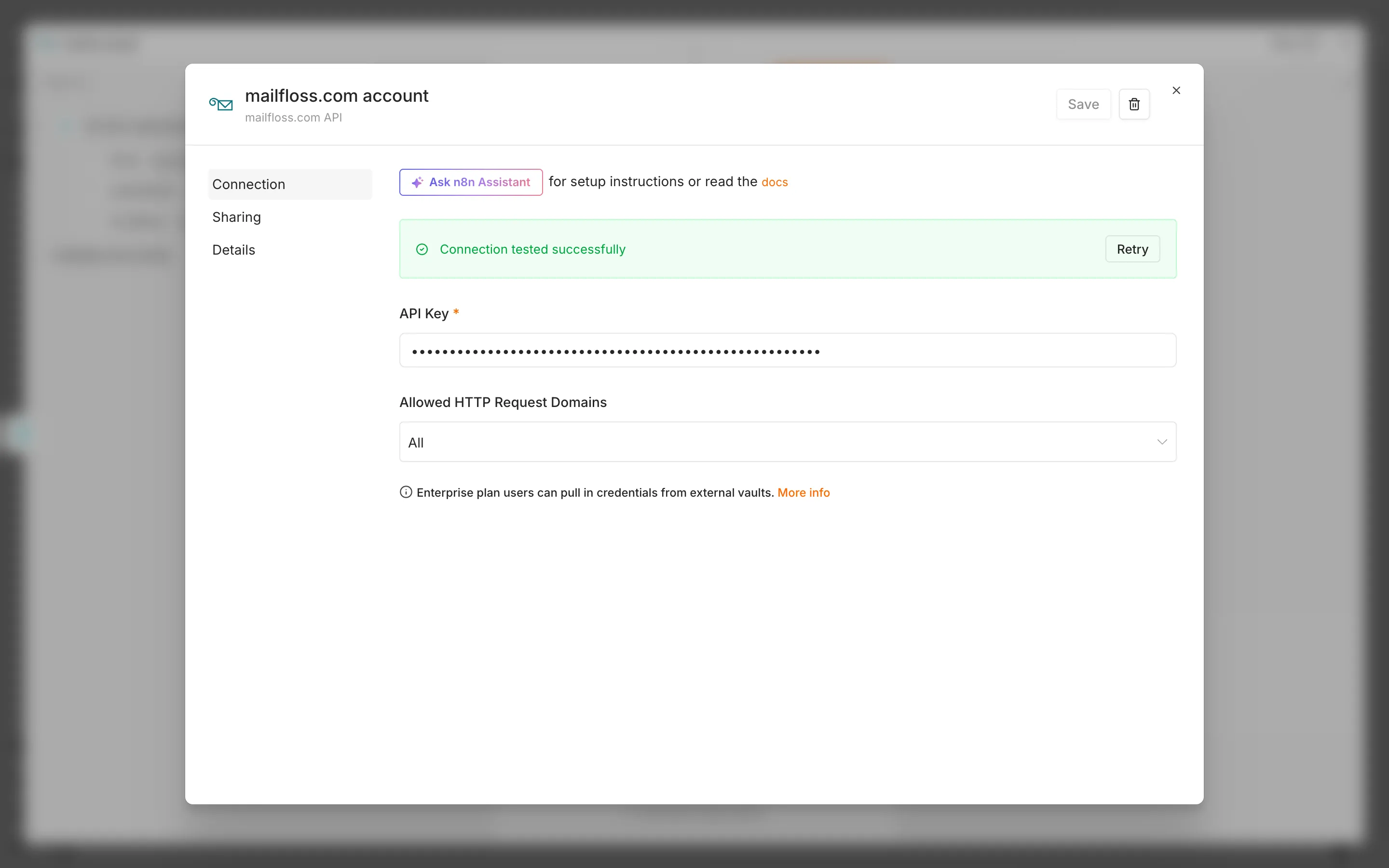
You only connect once. Other mailfloss nodes can use the same credential.
Starter workflow: verify new sign-ups before they reach your list
This workflow checks each new sign-up and adds only the addresses that pass to your list.
- Add a trigger for new sign-ups. This example uses n8n's On form submission trigger with one field, labeled Email, of type Email. You can use your form app's trigger instead.
- Click Execute workflow. n8n opens a test version of the form. Enter an address and submit it, so the trigger has a sample to map.
- Add mailfloss > Verify email. Drag the Email field from the input panel into Email, so it reads {{ $json.Email }}. Leave Simplify on.
- Click Execute step to try it. The output shows the address's status, reason, passed and suggestion.
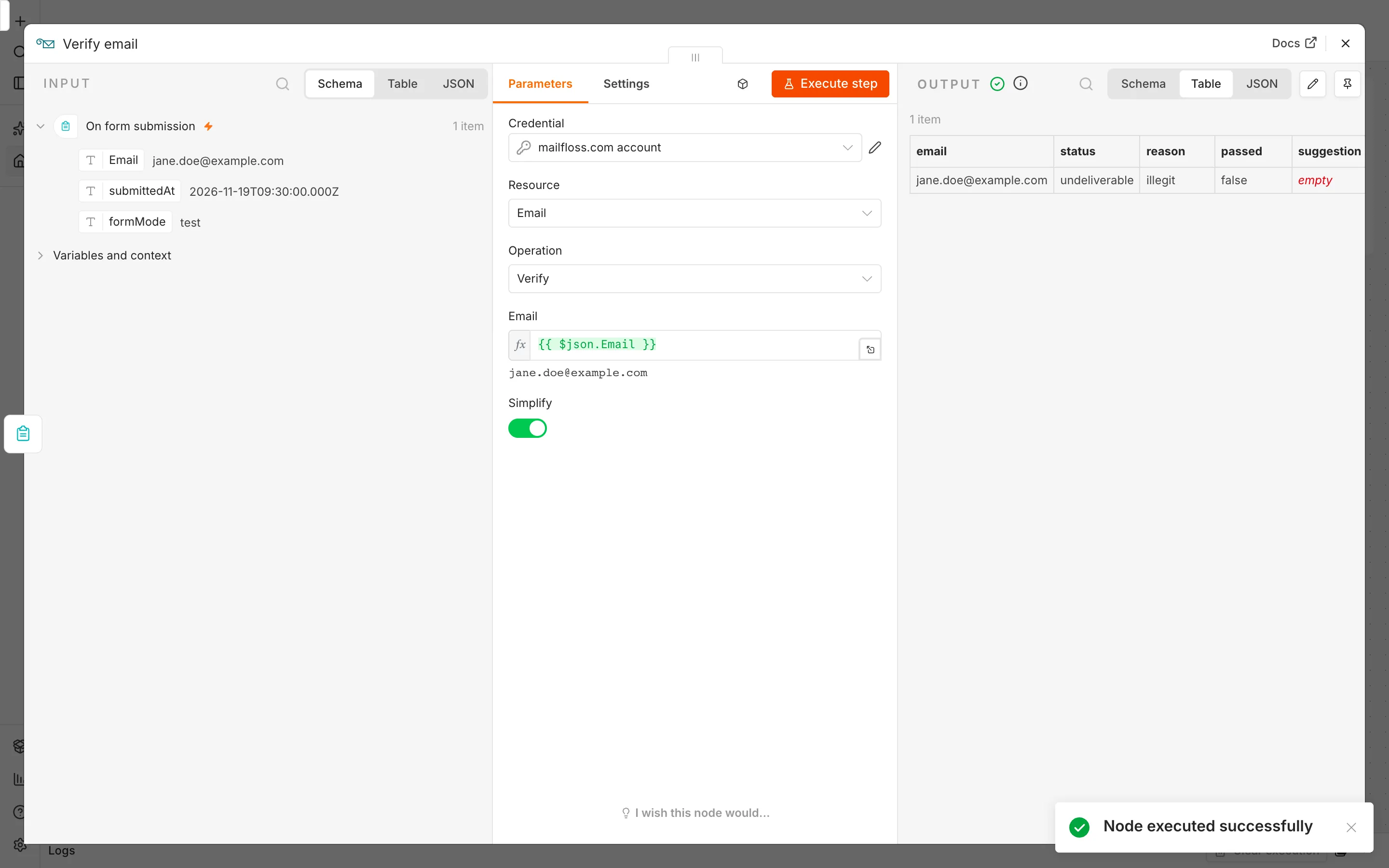
- Add an If node after mailfloss. Set the condition to {{ $json.status }} is equal to passed.
- On the true branch, add the node that adds a contact to your list, such as your email platform or CRM. This example uses an n8n data table named "Verified sign-ups", with the columns email and status: add Data table > Insert row, choose the table, and map {{ $json.email }} and {{ $json.status }}.
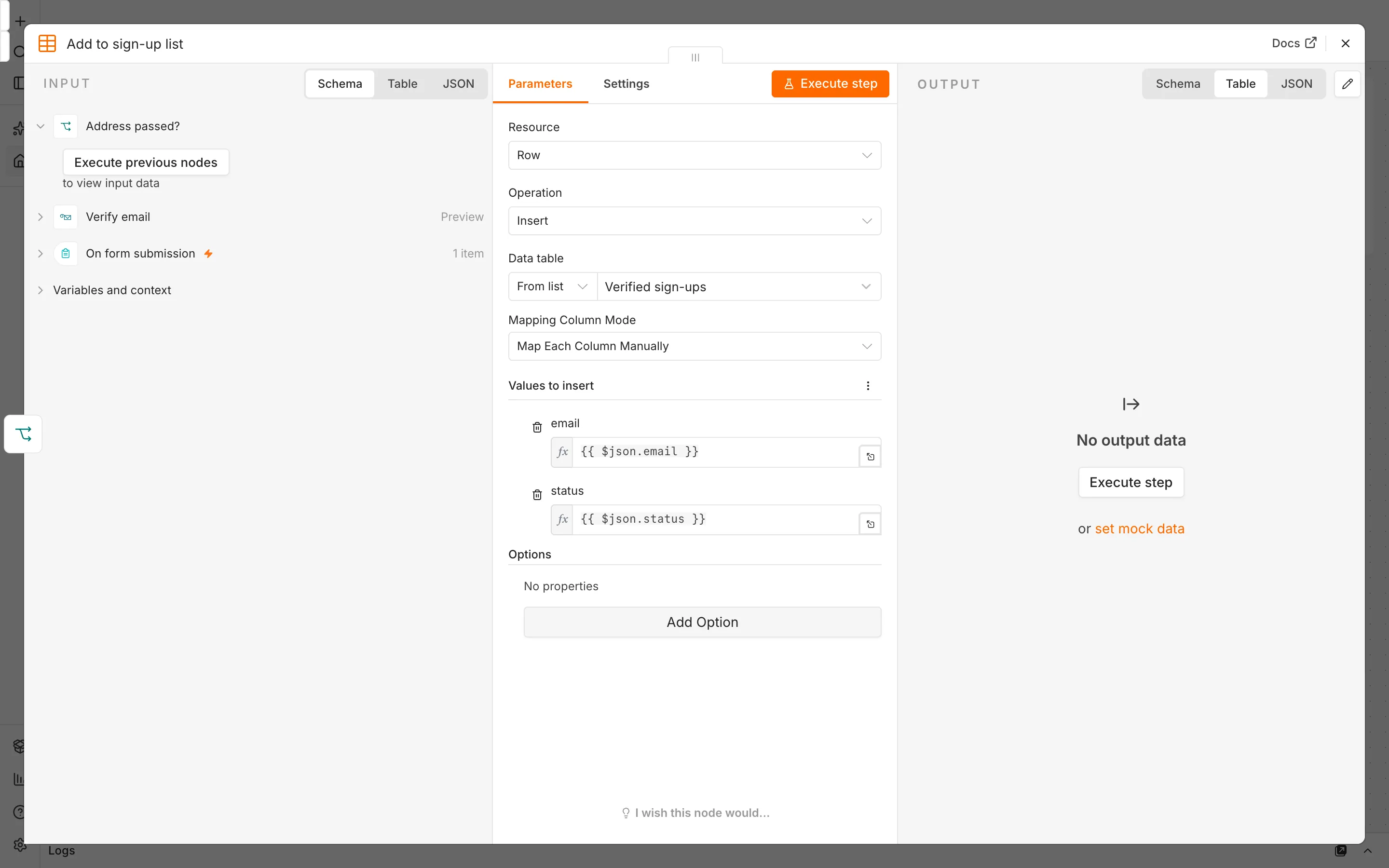
Leave the false branch empty to drop the address, or connect it to a review step. {{ $json.suggestion }} holds a corrected address when mailfloss spots a likely typo.
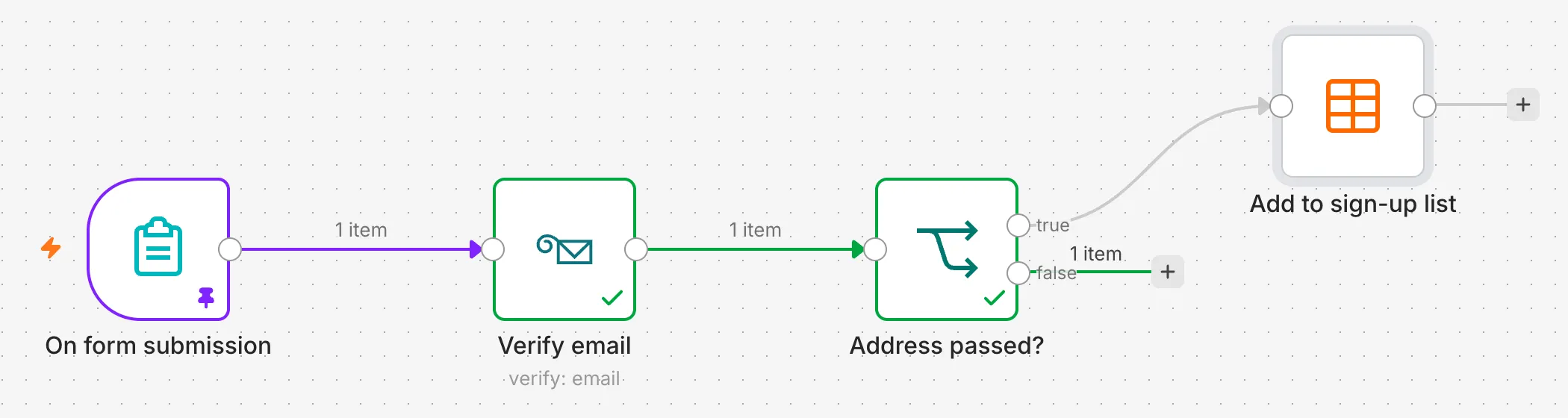
In this test, the address came back undeliverable, so it went down the false branch and never reached the list.
- When the workflow works, publish it. Then open On form submission, select Production URL, and use that URL for your sign-up form. Submit the form once and check Executions to confirm the workflow runs.
Status is one of passed, undeliverable, risky or unknown. An unknown result isn't a confirmed pass.
Operations
The mailfloss node:
- Verify email: verifies one address in real time and returns its status, the reason, whether it passed, and a suggested fix when the address looks like a typo. Uses one credit. Turn off Simplify to get every field mailfloss returns.
- Start batch: starts one batch verification job with the emails from all input items, and returns the job ID. You can add a Webhook URL that mailfloss calls when the job finishes.
- Get batch status: returns the progress and result counts of a job.
- Get batch results: returns one item per verified address.
AI agents in n8n can also use the mailfloss node as a tool.
The mailfloss Trigger node starts a workflow when mailfloss sends an event you choose, such as Flossing Completed (a verification job finished), Result: Undeliverable, Result: Risky or Reason: Disposable. When you activate the workflow, the node creates the webhook in your mailfloss account, and it removes the webhook when you deactivate the workflow.
Troubleshooting
- Couldn't connect with these settings, or a 401 error: mailfloss rejected the key. It may be mistyped, revoked or expired. Create a new key under Developers > API keys and paste it into the credential.
- A 402 error: your mailfloss account is out of verification credits. Add credits in mailfloss under Payments & Plans, then run the workflow again.
- A 403 error: the key is valid but can't do this. A Restricted key can cause this; use a key with Full access, or one that includes the access the operation needs.
- The mailfloss Trigger doesn't work: webhooks need a mailfloss plan that includes them: Business or Pro, or Lite with the Webhooks add-on. On self-hosted n8n, mailfloss must also be able to reach your instance over the internet. mailfloss doesn't accept webhook URLs on localhost or private networks, so set n8n's WEBHOOK_URL to a public address.