Encharge email verification options using mailfloss
When mailfloss finds an invalid email in Encharge, the Cleanup tab of your Encharge integration decides what happens. You have five options. The setting applies to every list in the connection, and you can change it any time.
Before you choose an option, connect Encharge to mailfloss. You only do this once. From then on, mailfloss verifies the emails in the connected Encharge account automatically.
Here are the five options in the Cleanup tab:
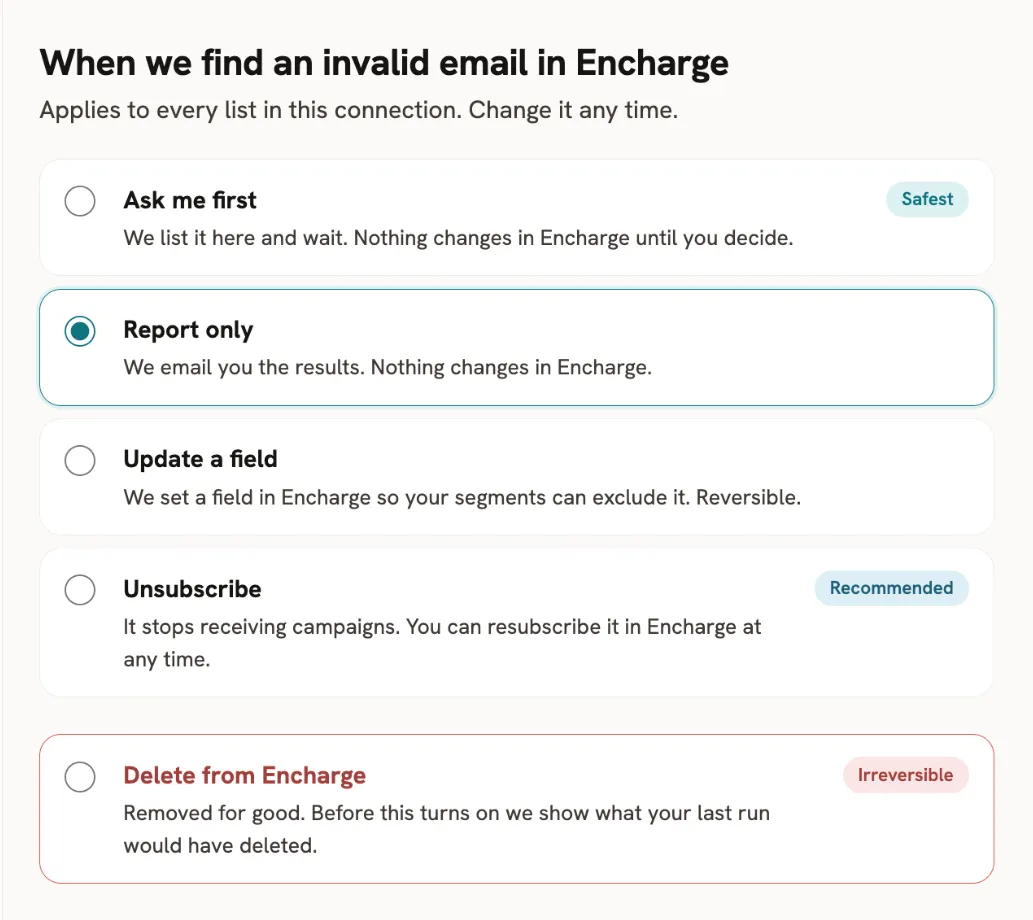
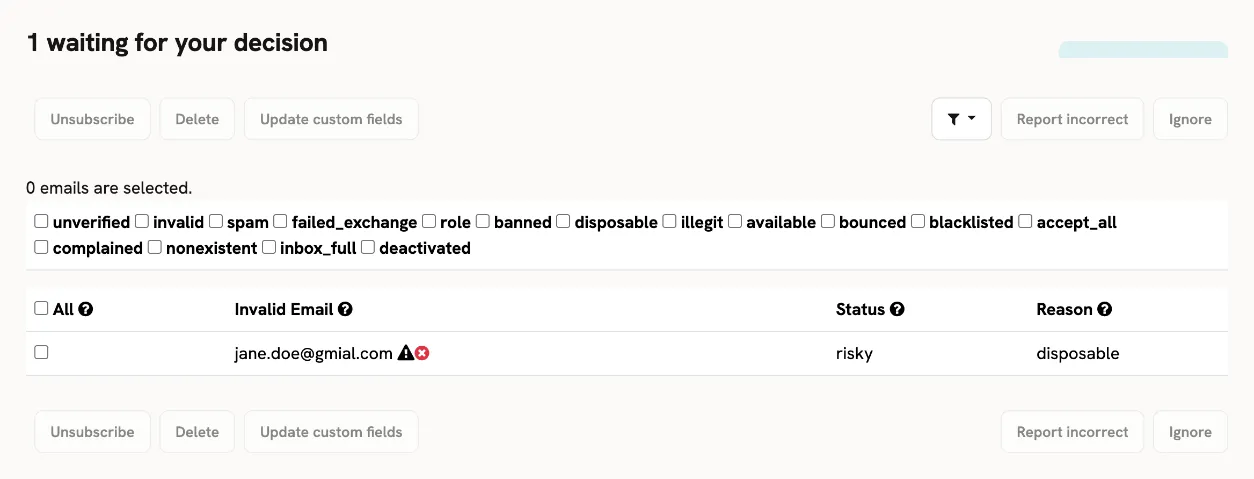
Ask me first. The safest option. mailfloss lists invalid emails in the Waiting for you tab, and nothing changes in Encharge until you decide. In Waiting for you, select emails and choose Unsubscribe, Delete, or Update custom fields. You can also mark them Report incorrect or Ignore, and filter the list by category.
Unsubscribe. The recommended option. mailfloss unsubscribes the contact in Encharge, so it stops receiving campaigns. You can resubscribe it in Encharge at any time. When you choose this option, mailfloss asks you to confirm. Turn on the switch under Unsubscribe to also update the fields.
Delete from Encharge. Irreversible. mailfloss removes the contact for good, and you won’t find it in Encharge anymore. Before this option turns on, mailfloss shows what your last run would have deleted and asks you to type the account name to confirm.
Update a field. mailfloss writes the verification result to fields in Encharge, so your segments can exclude invalid emails. You can also use them to sync with your other databases and CRMs. This is reversible.
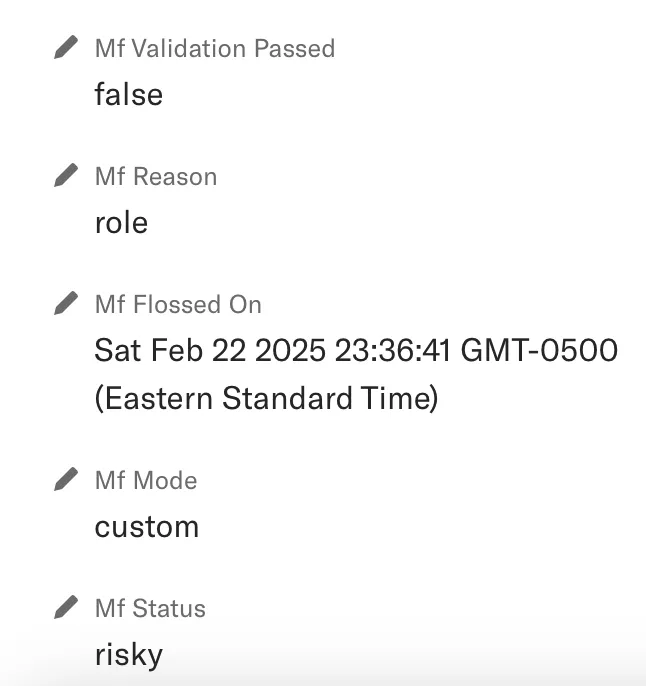
For more information about the fields mailfloss writes, check this article.
Report only. mailfloss emails you a report of the latest floss session. Nothing changes in Encharge. Choose this option if you only want the verification statuses for the connected Encharge account, like a traditional email validation service.
For an overview of what mailfloss does for Encharge, see the Encharge integration page.