Connect mailfloss to Make
Use the mailfloss app in Make to add email verification to your scenarios. Check each new address the moment it arrives, verify a whole list as a batch, or start a scenario when mailfloss finds an undeliverable address or finishes a job.
Before you start
You need a Make account and a mailfloss account with verification credits. Verifying one address uses one credit. A batch uses one credit per address. Make counts its own operations against your Make plan; those are separate from mailfloss credits.
Create a mailfloss API key
- In mailfloss, open Developers. The API keys tab opens.
- Click Create API key. Give the key a name you'll recognize, such as "Make", and click Create API key.
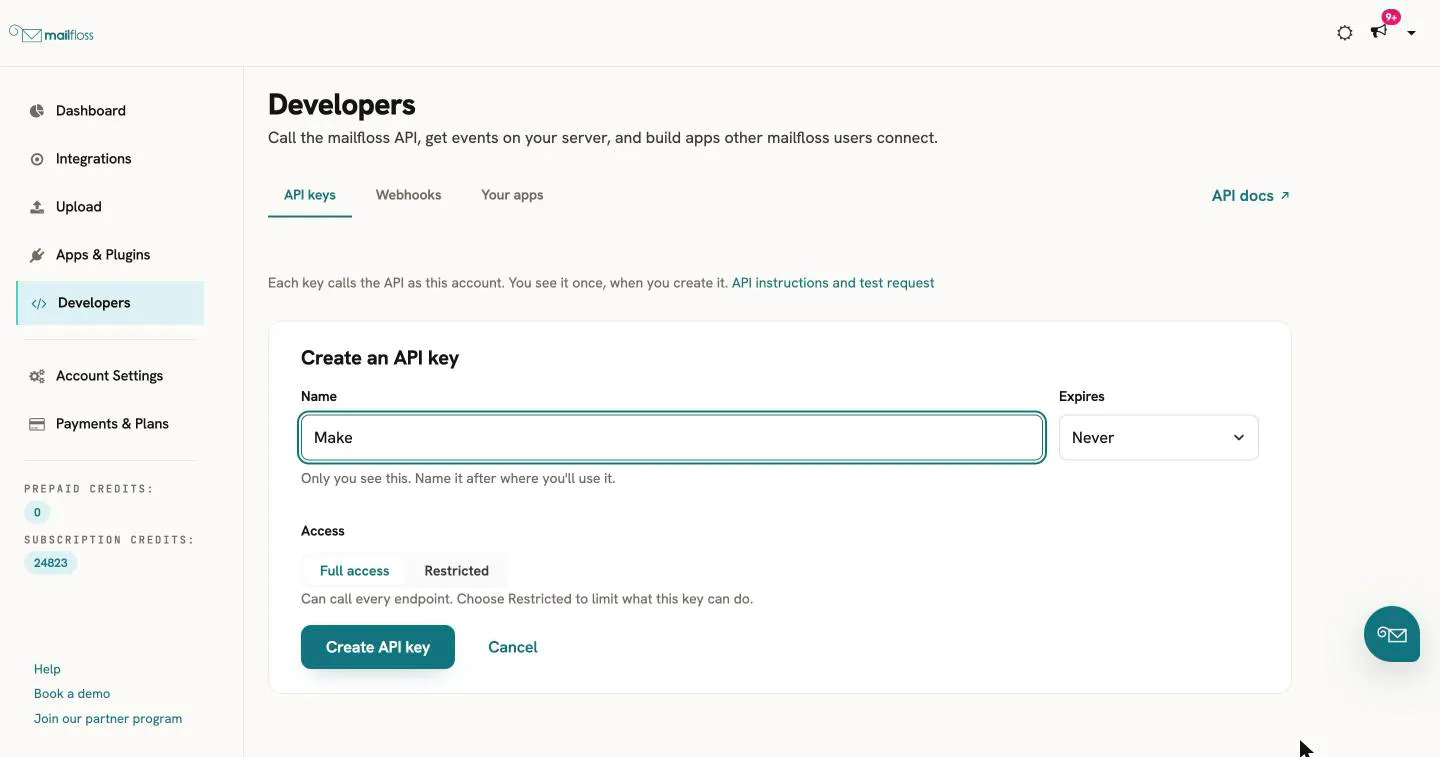
- Copy the key. mailfloss shows it only once.
A key with Full access works with every module. If you choose Restricted, a module that needs access you didn't grant fails with a 403 error.
Connect mailfloss in Make
- In a Make scenario, click + to add a module and search for mailfloss. Choose the mailfloss app marked Verified.
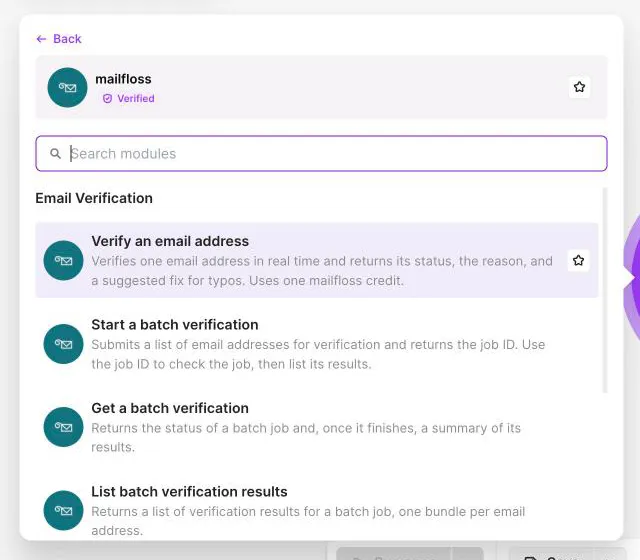
- Choose a module, for example Verify an email address.
- Under Connection, click Create a connection.
- Paste your API key into API key and click Save. Make checks the key before it saves the connection.
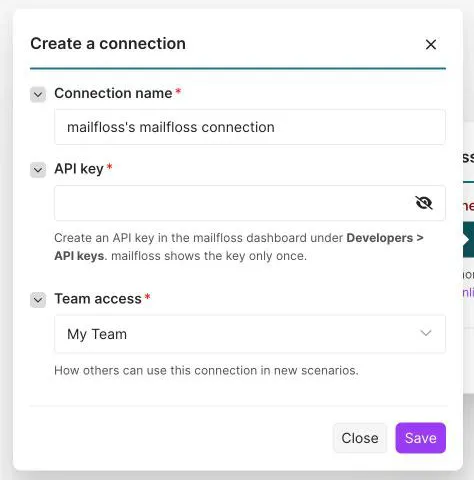
You only connect once. Other mailfloss modules can use the same connection.
Starter scenario: verify new sign-ups before they reach your list
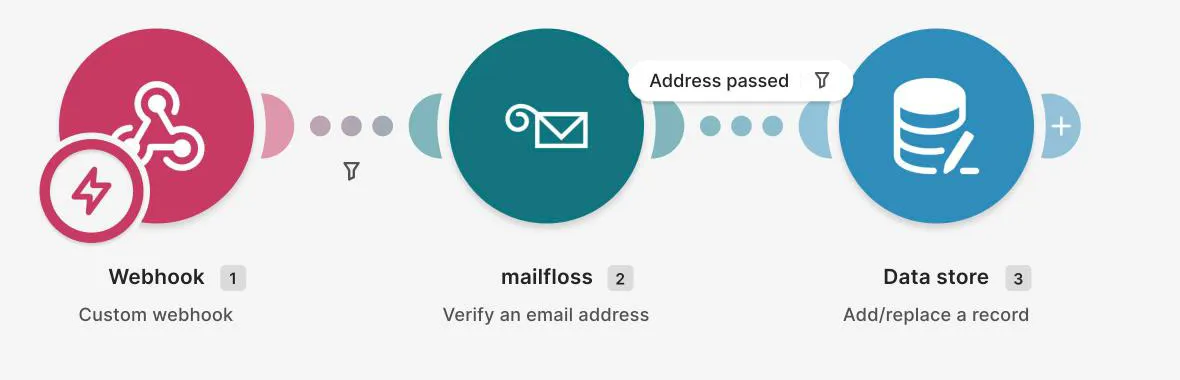
This scenario checks each new sign-up and passes on only the addresses that pass verification.
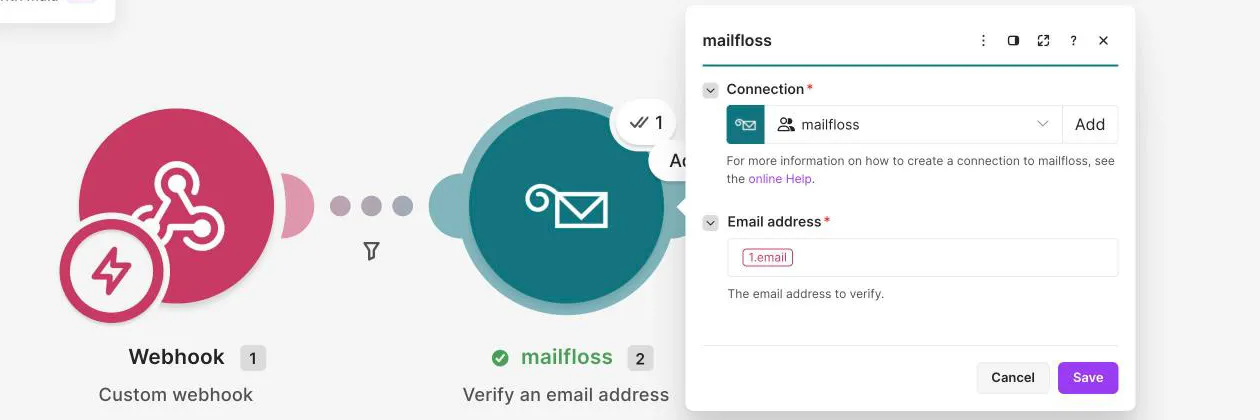
- Add a trigger for new sign-ups. This example uses Webhooks > Custom webhook: click Add, name the webhook, and copy its URL into your form's settings so the form posts each sign-up there. Then click Detect new values and submit a test sign-up, so Make learns the form's fields. You can use your form app's own trigger instead.
- Add mailfloss > Verify an email address. In Email address, map the email field from your trigger.
- Add the module that adds a contact to your list, such as your email platform's module for adding a subscriber. This example uses Data store > Add/replace a record, with a data store named "Verified sign-ups" that has the fields Email and Status. Leave Key empty so Make creates one, and map Email and Status from the mailfloss module.
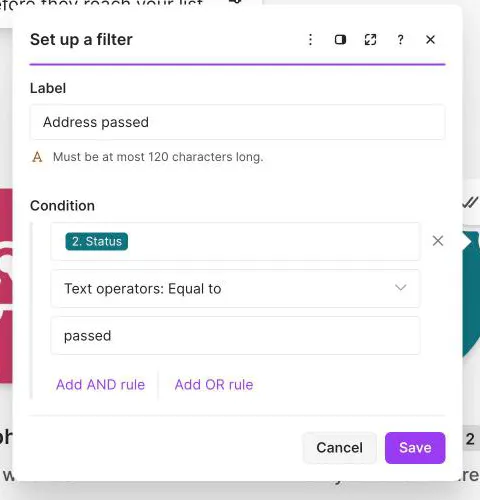
- Click the link between mailfloss and that module, then click Set up a filter. Name the filter. For the condition, choose mailfloss's Status, then Text operators: Equal to, and enter passed.
The finished scenario looks like this:
- Click Run once and send a test sign-up. When the run ends, click the bubble above the mailfloss module to see the result.
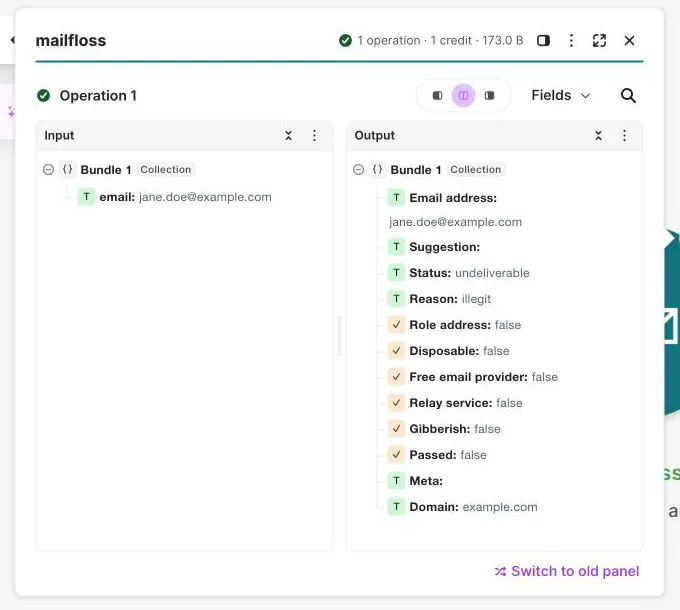
In this test, the address came back undeliverable, so the filter stops it before it reaches your list.
- When the scenario works, switch it on so it runs for every new sign-up.
When mailfloss spots a likely typo, Suggestion holds a corrected address. Map it to ask the person to confirm their address.
Status is one of passed, undeliverable, risky or unknown. An unknown result isn't a confirmed pass.
Modules
- Watch verification events (trigger): starts a scenario when mailfloss sends an event you choose, such as a finished batch job, an undeliverable or risky address, or a contact that mailfloss fixed or removed. Needs a mailfloss plan that includes webhooks.
- Verify an email address: verifies one address in real time and returns its status, the reason and a suggested fix for typos. Uses one credit.
- Start a batch verification: submits a list of addresses for verification and returns the job ID.
- Get a batch verification: returns a job's status and, once it finishes, a summary of its results.
- List batch verification results: returns one bundle per verified address.
- Make an API call: calls any mailfloss API endpoint with your connection. Enter a path such as /v1/organization; the connection adds your key.
Troubleshooting
- [401] Invalid API key: mailfloss rejected the key. It may be mistyped, revoked or expired. Create a new key under Developers > API keys. Then, in the module, click Add next to Connection and create a connection with the new key.
- [402] Insufficient credits: your mailfloss account is out of verification credits. Add credits in mailfloss under Payments & Plans, then run the scenario again.
- [403]: the key is valid but can't do this. A Restricted key can cause this; use a key with Full access, or one that includes the access the module needs.
- Watch verification events doesn't work: webhooks need a mailfloss plan that includes them: Business or Pro, or Lite with the Webhooks add-on.