Connect mailfloss to ChatGPT
Before you start
You need a mailfloss account and access to install the plugin in your ChatGPT workspace. Your workspace can restrict plugin availability. The app's mailfloss permissions follow your dashboard role.
Connect
- In ChatGPT, open Plugins and search for mailfloss. Open the mailfloss plugin by mailfloss, then click Install plugin.
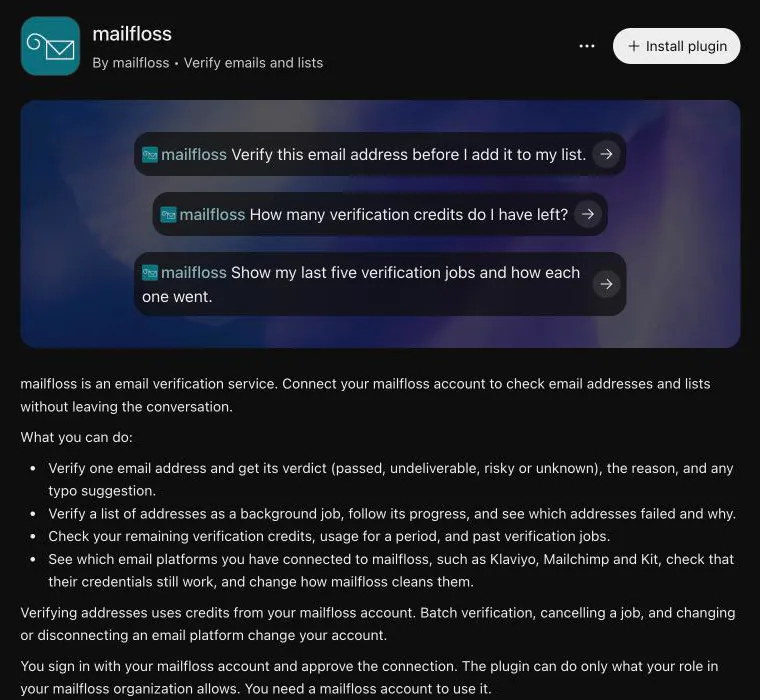
- Connect when prompted, sign in to mailfloss, and review the requested access.
- Start a new chat and use @ to invoke the installed plugin. Ask which mailfloss integrations are connected. This reads connection information without starting email verification.
Use verification tools
For a single address, request a single-email verification. For multiple addresses, request a batch, keep its returned identifier, then request progress and results. A single check uses one credit per call, including repeats; a batch uses one credit per email. Status and result reads do not use verification credits.
Inspect connected integrations
You can inspect connected integrations and refresh audience information with a resync. A resync does not run email verification. Connect new email platforms in the mailfloss dashboard. Some available actions change cleaning settings or disconnect an integration, so review the scope before authorizing them.
If you cannot connect
If the plugin is unavailable, check your workspace's plugin permissions. If its listing fails to load, stop setup and report that exact failure through mailfloss support. Do not paste an API key into chat to work around a failed connection.
Disconnect
In mailfloss, open Account Settings → Connected apps and disconnect the app. Removing a plugin in ChatGPT is not a substitute for revoking a separately connected MCP server's access.
For technical tool details and supported operations, see the mailfloss MCP guide.